


Set or Add value to registry:
Application.UserAppDataRegistry.SetValue("key", "value")
Get or Load value from registry:
Application.UserAppDataRegistry.GetValue("key")
value will saved into registry, and the location is "HKEY_CURRENT_USER\Software\" and path is "Developer\application name\version".
This a sample:
HKEY_CURRENT_USER\Software\MyCompany\My VB.net program\1.0.0.0
Read More!
Thursday, March 31, 2011

Wednesday, January 26, 2011
C++, Get all parameter there was sent by (DOS/CMD Mode)
#include
#define uli unsigned long int
/*
Get all parameter there was sent by (DOS/CMD Mode)
ex :
jal.exe -this is
Then the parameter is:
*/
void main(int arc, char *ar[])
{
// arc:count of parameter(split with space)
// ar: 2D array include string parameter
int n=0,i;
char cmd[255]; //maksimal argument
char *cek = ar[1];
for (int j=1;j
i=0;
do{
cmd[n] = ar[j][i];
i++; n++;
}while(ar[j][i]!=0);
cmd[n]=' ';
n++;
};
cmd[n]='\0'; //null terminated string
//Show All Parameter command
cout << "----------------------\nparameter: "<< cmd << '\n';
}
// by: Klampok_Child@yahoo.co.id
Read More!
#define uli unsigned long int
/*
Get all parameter there was sent by (DOS/CMD Mode)
ex :
jal.exe -this is
Then the parameter is:
void main(int arc, char *ar[])
{
// arc:count of parameter(split with space)
// ar: 2D array include string parameter
int n=0,i;
char cmd[255]; //maksimal argument
char *cek = ar[1];
for (int j=1;j
i=0;
do{
cmd[n] = ar[j][i];
i++; n++;
}while(ar[j][i]!=0);
cmd[n]=' ';
n++;
};
cmd[n]='\0'; //null terminated string
//Show All Parameter command
cout << "----------------------\nparameter: "<< cmd << '\n';
}
// by: Klampok_Child@yahoo.co.id
Read More!
TPW StrToInt IntToStr
function StrToInt(s:char):integer ;
begin
StrToInt := ord(s)-48;
end;
function IntToStr(ii : longint): string;
var s : string[30];
begin
str(ii, s);
IntToStr := s;
end;
Read More!
begin
StrToInt := ord(s)-48;
end;
function IntToStr(ii : longint): string;
var s : string[30];
begin
str(ii, s);
IntToStr := s;
end;
Read More!
Tuesday, May 11, 2010
Free download VB 2010 Template
visit this for more..
IE 8 Accelerator (VB)
Creates an IE 8 Accelerator that searches MSDN |
|
WPF About Box (VB)
Every application has an AboutBox (and WinForms even ships a template for it), but there isn't a common one for WPF Applications... until now. This extension has been updated and now only installs on Visual Studio 2010 Beta 2. |
|
WCF REST Service Template 35(VB)
This is a template for building WCF REST services for .Net Framework 3.5. |
|
Twitter Screensaver (VB)
A WPF Windows screensaver that displays posts from a Twitter feed |
|
WPF Notification Area Application (VB)
An example template for creating a Windows Notification Area application using WPF |
|
Card Game Starter Kit - VBThis Visual Basic Starter Kit is a complete BlackJack card game. The project comes ready to compile and run, and it's easy to customize with only a little extra VB programming. The documentation contains a list of some customizations you might make. You are also free to use the source code as the basis for your own card game projects, and share your work with others or upload it to the Internet.
|

Read More!
Sunday, May 02, 2010
console application with VB
Some development tools, like Visual C++ and Delphi, allows the developer to easily create console applications. These tools provides specific methods and functions for writing to the console screen and their compiler also provides special option for creating console executable. Unfortunately, Visual Basic doesn't support console applications. Even if you use the Win32 API for writing into the console screen, Your application won't work, because the Visual Basic compiler always creates GUI application and it doesn't provide any compiler options for changing it to console application.
But... with a small trick, it's possible to bypass the limitation of the Visual Basic compiler:
I have developed a small utility that converts an Executable file (.exe) from GUI application mode to console application mode. So, you can develop a console application in Visual Basic, create an executable file, and then, use my utility to convert the executable into a console application.
My utility was developed in Visual Basic, and the source code is provided within the sample package. You can use it by opening the appmodechange project from Visual Basic IDE.
In order to create a console application in Visual Basic, you have to use Win32 API calls.
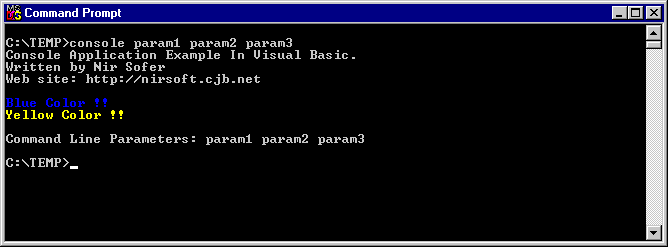
The following code snippet writes a few lines into the console screen, some of them are shown in different colors !
After you create an executable file from this code, you have to use the Application Mode Changer for changing the executable mode from GUI application to console application.
After you convert it to console mode, you'll get the following result:
Read More!
But... with a small trick, it's possible to bypass the limitation of the Visual Basic compiler:
I have developed a small utility that converts an Executable file (.exe) from GUI application mode to console application mode. So, you can develop a console application in Visual Basic, create an executable file, and then, use my utility to convert the executable into a console application.
My utility was developed in Visual Basic, and the source code is provided within the sample package. You can use it by opening the appmodechange project from Visual Basic IDE.
In order to create a console application in Visual Basic, you have to use Win32 API calls.
The following code snippet writes a few lines into the console screen, some of them are shown in different colors !
'Console Application Sample 'Written by Nir Sofer. ' 'Web site: http://nirsoft.mirrorz.com ' 'In order to create a console application from this code, follow the instructions below: '1. Make an executable file from this project. '2. Run the "Application Mode Changer" utility and change the mode of the executable file to "Console Application". Public Declare Function GetStdHandle Lib "kernel32" _ (ByVal nStdHandle As Long) As Long Private Declare Function WriteFile Lib "kernel32" _ (ByVal hFile As Long, _ lpBuffer As Any, _ ByVal nNumberOfBytesToWrite As Long, _ lpNumberOfBytesWritten As Long, _ lpOverlapped As Any) As Long Public Const STD_OUTPUT_HANDLE = -11& Private Type COORD x As Integer y As Integer End Type Private Type SMALL_RECT Left As Integer Top As Integer Right As Integer Bottom As Integer End Type Private Type CONSOLE_SCREEN_BUFFER_INFO dwSize As COORD dwCursorPosition As COORD wAttributes As Integer srWindow As SMALL_RECT dwMaximumWindowSize As COORD End Type Private Declare Function GetConsoleScreenBufferInfo Lib "kernel32" _ (ByVal hConsoleOutput As Long, _ lpConsoleScreenBufferInfo As CONSOLE_SCREEN_BUFFER_INFO) As Long Private Declare Function SetConsoleTextAttribute Lib "kernel32" _ (ByVal hConsoleOutput As Long, ByVal wAttributes As Long) As Long Private Const FOREGROUND_BLUE = &H1 ' text color contains blue. Private Const FOREGROUND_GREEN = &H2 ' text color contains green. Private Const FOREGROUND_INTENSITY = &H8 ' text color is intensified. Private Const FOREGROUND_RED = &H4 ' text color contains red. Private hOutput As Long 'The following function writes the content of sText variable into the console window: Private Function WriteToConsole(sText As String) As Boolean Dim lWritten As Long If WriteFile(hOutput, ByVal sText, Len(sText), lWritten, ByVal 0) = 0 Then WriteToConsole = False Else WriteToConsole = True End If End Function Public Sub Main() Dim scrbuf As CONSOLE_SCREEN_BUFFER_INFO 'Get the standard output handle hOutput = GetStdHandle(STD_OUTPUT_HANDLE) GetConsoleScreenBufferInfo hOutput, scrbuf WriteToConsole "Console Application Example In Visual Basic." & vbCrLf WriteToConsole "Written by Nir Sofer" & vbCrLf WriteToConsole "Web site: http://nirsoft.mirrorz.com" & vbCrLf & vbCrLf 'Change the text color to blue SetConsoleTextAttribute hOutput, FOREGROUND_BLUE Or FOREGROUND_INTENSITY WriteToConsole "Blue Color !!" & vbCrLf 'Change the text color to yellow SetConsoleTextAttribute hOutput, FOREGROUND_RED Or _ FOREGROUND_GREEN Or FOREGROUND_INTENSITY WriteToConsole "Yellow Color !!" & vbCrLf 'Restore the previous text attributes. SetConsoleTextAttribute hOutput, scrbuf.wAttributes If Len(Command$) <> 0 Then 'Show the command line parameters: WriteToConsole vbCrLf & "Command Line Parameters: " & Command$ & vbCrLf End If End Sub |
After you convert it to console mode, you'll get the following result:
| Download the projects and executables | |
| View the source code of Application Mode Changer | (nirsoft.net) |
Read More!
Creating own firefox theme
Using add-ons extensions personas 1.5.3 or other versions, which you can download it at https: / / addons.mozilla.org/firefox/downloads/latest/10900? src = external-getpersonas or clay on his Web site at www.getpersonas. com .

Create a header image for your firefox browser, should 3000X200px size (width 3000px 200px height), format jpg image / png


Read More!
Oops, before downloading, make sure when you open the link above with modzilla firefox browser.
Terms of skill (recommended)
1. Can operate a computer (must)
2. Knowing the image format jpg / png and pixel size
3. Can operate the programs image editor (photoshop, corel, etc. ..)
2. Knowing the image format jpg / png and pixel size
3. Can operate the programs image editor (photoshop, corel, etc. ..)
If your condition has not yet mastered all, hence my suggestion better to use the picture-me theme personas so you can download at https: / / www.getpersonas.com / en-US / gallery
Step 1 of 3 MAKE DRAWINGS Header
Create a header image for your firefox browser, should 3000X200px size (width 3000px 200px height), format jpg image / png
Examples determine with photoshop:
Open the Photoshop program, then Select the menu "File" >> "new", and set as follows:
Create your image, then "save as .."
Image size must be less than 300kb, and less than a 3000X200 pixel image
Step 2 of 3 MAKE DRAWINGS FOOTER
To footer image size images 3000X100px.create your footer image then save as ..
Taraaa.. drawing is finished, now apply Its picture to firefox
Step 3 from 3 APPLYING THEME TO FIREFOX
Open your firefox program, look at the bottom left corner, if no icon is red, yellowish then restart firefox before you, so add-ons can be loaded. If you have, click the icon and then follow the steps below:
How to apply the theme you made, click the icon in the lower left corner, look at the list, if you do STEP 2 right above you must have the name of the theme will appear there, then select "apply"
Reference: www.getpersonas.com
Read More!
Subscribe to:
Posts (Atom)


