S
H
A
R
E
Showing posts with label visual basic world. Show all posts

Thursday, April 19, 2012

haarcascade porn and breast detection

I have two haarcascade for nude image detection, first is for breast detection, and for porn (nude) image detection.
Haarcascade for porn image detection, accuarate just 40%-50%, still have many false detection, but you can use for detecting a nude image. created by Indonesian people.
And haarcascade for breast detection, it have 70%-80% accuration. i don't know who made it, but i got it from Hackchina source code search engine.
now you can make your OpenCV to detecting a nude image by using this haarcascades. but you need for create a skin color detection algorithm for make detection more accurate! i will share for skin color detection algorithm in the next moment.

Read More!

Wednesday, July 13, 2011

VS2010 Drag-Drop Text in TextBox

Its Simple, Create new Windows Form Application using Visual Basic Language, and use one Textbox control. and then add code on Mouse Move event, Follow this:
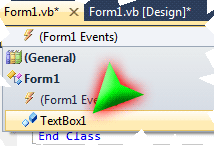
In the form1 code, click on event and choose TextBox1


Read More!

Monday, July 11, 2011

How To Calculating Human Age

Using VB .net, Make a Windows Form Application, And use one DateTimePicker control, and write this code:


Private Sub DateTimePicker1_ValueChanged() Handles DateTimePicker1.ValueChanged
  Dim Birth As Date = DateTimePicker1.Value
  Dim year, month, day As Integer
  While year <= (Now.Year - Birth.Year)


Read More!

Tuesday, July 05, 2011

Basic Concept of Databindings

Language: VB.net
Add two Textbox in your form, and then add this code when Form Load:

        ' When Textbox1 text changed, then Texbox2 too
        TextBox2.DataBindings.Add(New Binding("text", TextBox1, "text"))

        ' When Textbox2 text changed, then Texbox1 too
        TextBox1.DataBindings.Add(New Binding("text", TextBox2, "text"))


the two Textbox Will Also have same text.

Read More!
Saturday, July 02, 2011

XML to Tree Node

XML to Tree Node VB net Visual Studio
XML to Tree Node Screen Shot
This program is demonstrate how to converting XML tag to TreeView node. Written using Visual Studio 2010.

Read More!

Friday, June 24, 2011

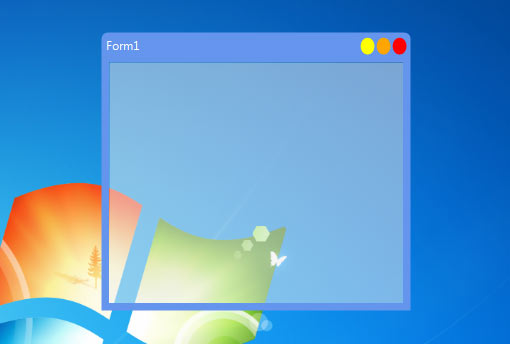
Custom Windows Form Border With Background Opacity

Lnguage: VB net (NetFramework 4.0) (will work in NetFramework 3.5 or before)
Custom Form Border With Background Opacity using VB net Csharp in Visual Studio with Windows API dll

Read More!

Saturday, June 11, 2011

get opened folder location in explorer using vb net

get opened folder location in explorer using vb net
I make it using VS 2010, in 2008 I think same. lets make new Visual Studio Project, Windows Form Application. and import this reference "" look this:

Read More!

Monday, June 06, 2011

Detecting Face in Image (VB.net 2010)

Sample Face Detection with VB net 2010
Sample Face Detection
I write this code using VS 2010, and my OS is Windows 7. This code was used library of the Open Source Computer Vision (OpenCV) and EmguCV. see this:

Read More!

Wednesday, June 01, 2011

VBnet Invoke Listbox Threading in Form

Imports System.Threading
Public Class Form1
    Delegate Sub SetText(ByVal tx As String)
    Private Sub Form1_Load(ByVal sender As System.Object, ByVal e As System.EventArgs) Handles MyBase.Load
        Dim t As New Thread(AddressOf AddList)
        t.Start()
    End Sub

Read More!

Sunday, May 29, 2011

Draw Text On Glass Window in VB.net

Text On Glass Window
When you make a glasses window, and you drop a label to the form designer, you will see that the label is not good. to fix this problem, you can use this way (sample code):

Read More!

Thursday, May 26, 2011

VB net Transparent Form Background


VB.net AERO GLASS


THIS THE CODE:


Imports System.Runtime.InteropServices

Public Class Form1
    <StructLayout(LayoutKind.Sequential)> _
    Public Structure MARGINS
        Public cxLeftWidth As Integer
        Public cxRightWidth As Integer
        Public cyTopHeight As Integer
        Public cyButtomheight As Integer
    End Structure
    <DllImport("dwmapi.dll")> _
    Private Shared Function DwmExtendFrameIntoClientArea(ByVal hwnd As IntPtr, ByRef margin As MARGINS) As Integer
    End Function

    Private Sub Form1_Load(ByVal sender As System.Object, ByVal e As System.EventArgs) Handles MyBase.Load
        Dim mg As MARGINS = New MARGINS
        mg.cxLeftWidth = -1
        mg.cxRightWidth = -1
        mg.cyTopHeight = -1
        mg.cyButtomheight = -1
        'set all value -1 to apply glass effect to the all of visible window
        Try
            DwmExtendFrameIntoClientArea(Me.Handle, mg)
        Catch ex As Exception
        End Try
    End Sub
End Class

Read More!

Monday, May 16, 2011

All-In-One Code Framework Sample Browser


Have you ever heard about All-In-One Code Framework, a centralized code sample library from Microsoft?  Have you ever tried its cool Sample Browser application that makes the sample search and download easy and hassle free?


This extension of Visual Studio integrates the Sample Browser of All-In-One Code Framework, which helps search for code samples whenever you are coding with VS2010. Along with the powerful filter, you can find and download the most proper & useful sample in a few seconds, right from within Visual Studio!
Configuration:
The first time you launch the search tool, a configuration dialog box pops up. You will be asked to specify a directory for downloaded samples,  and the connection settings determines proxy using, if no samples shows up after searching, you can try to change the connection setting to IE proxy setting.
Also, you can call this configuration box out by click the hyperlink “Configurations” on the left bottom.
How to use:
  • Menu command, Tools->Search Code Sample:
It launches the sample browser extension and display history tabs when last time the extension closed, if no history tabs, it searches for condition (Key word: Empty, all language, all technology) by default.
  • Code editor context menu command, Search Code Sample:
It launches the sample browser extension and searches for conditions based on the selection string in current active code file and its file extensions.
For instance, in the picture above, the search condition is (Key word: Form1, C# language, all technology)
  • Shortcut Key, Alt+F1:
Same as the context menu command, if no code editor is opened, it searches for condition (Key word: Empty, all language, all technology) by default.
  • You can download the sample by click the Hyperlink “Download” or open its description page by double click on the sample name.
  • If you cannot find a proper sample via this tool, you can also request for this sample by click on the hyper link “Request a code sample”.
BY: Ziwei_Vic

Download Here or Here

Read More!

VBnet Tool: Remove Unused References

Got too many unused project references in your face? Clean them up with the aptly named 'Remove Unused References' extension!
Just right-click on a project (or solution) and choose 'Remove Unused References' from the menu and this extension will go to work while you wait (*). After it's done you can almost smell that lemon scent.
BY : spongman (Code Without Borders)
Download Here or Here

Read More!

Monday, May 02, 2011

VB.net Console with Form and Muti-threading


I using VS 2010, lets try it, Make your project with VB language, choose Console Application.
In Console Apllication, you can’t import the windows class (Imports System.Windows.Forms). Because, the references it not included automatically in Console Apllication project, but, it can be set, use this way:

·         On Solution Explorer, klik ‘My Project’ (Project properties and configurations):


·         Choose ‘Refferences’:

·         Click Add:

·         Select “System.Windows.Forms”:

“Click OK”, now you can create form in your console application :-), now you can use this import: Imports System.Windows.Forms.

NEXT: THE CODING

Import System.Windows.Forms in your project, and declaring this

    Dim T1 As New Threading.Thread(AddressOf Thread_one)
    Dim i As Integer = 0

Var I is use for counter, T1 is the thread class object, and Thread_One is the sub program that will run as thread T1.

Create the Main Sub:

    Sub Main()
        Console.WriteLine("Press enter and then the second thread will be run..")
        Console.ReadKey()
        T1.Start()
        Console.Write("Input User: ")
        Console.ReadLine()
        T1.Abort()
    End Sub

And this is the handler of Second Thread:

    Private Sub Thread_one()
        Dim Thread_one_form As New Form
        Dim Thread_one_label As New Label
        Dim i As Integer = 0
        Thread_one_form.Show()
        Thread_one_form.Top = 0
        Thread_one_form.Width = 200
        Thread_one_form.Height = 100
        Thread_one_label.Parent = Thread_one_form
        Thread_one_label.Dock = DockStyle.Top
        Thread_one_form.Text = "Waiting User Input"
        While True
            Thread_one_label.Text = i & " seconds."
            i += 1
            Threading.Thread.Sleep(1000)
            Thread_one_form.Left = (i + 1) * 10
            Thread_one_form.Update()
        End While
    End Sub

This subwill showing the form and wating for user input. U can edit this code for make your application run more better and escape from Not responding form process.

Download Tutorial (docx) and Project (VB2010)

Read More!

Thursday, April 28, 2011

VB.net Create Simple Text Effect Following Mouse

This Program will displaying text on screen and following mouse with simple effect. Just a simple, have some conntrol mouse manipulation, and timer for animation.


This project using NetFramework 3.5, I write it with Visual studio 2008, Would you like to try??
Ok, lets make a new VB project in Visual studio. and then... copy the code bellow:


Public Class Form
    Dim str As String = ""
    Dim StrLen As Integer = 0
    Dim pos As Integer = 0
    Const TxWidth As Integer = 17
    Dim Lb(30) As Label
    Dim WithEvents tm As New Timer()
    Dim WithEvents TmIkuti As New Timer()


    Private Sub Form1_Load(ByVal sender As System.Object, ByVal e As System.EventArgs) Handles MyBase.Load
        str = "This A Simple Mouse Effect"
        Me.ShowInTaskbar = False
        Me.TopMost = True
        StrLen = str.Length
        Me.FormBorderStyle = Windows.Forms.FormBorderStyle.None
        Me.BackColor = Color.White
        Me.TransparencyKey = Color.White
        TataHuruf()
    End Sub

    Private Sub TataHuruf()
        For i = 0 To StrLen - 1
            Lb(i) = New Label
            Lb(i).Text = str(i)
            Lb(i).Width = TxWidth
            Lb(i).Font = New Font("Calibri", 12, FontStyle.Bold)
            Lb(i).Left = TxWidth * i
            Lb(i).Top = 5
            Lb(i).Parent = Me
            Lb(i).Show()
        Next
        Me.Height = Lb(0).Height + 5
        Me.Width = TxWidth * StrLen
        tm.Interval = 80
        tm.Start()
        TmIkuti.Interval = 10
        TmIkuti.Start()
    End Sub

    Private Sub Animasi() Handles tm.Tick
        Lb(pos).Top = 0
        Lb(pos).ForeColor = Color.Red
        Dim pr As Integer = PosMovPrev(pos)
        Lb(pr).Top = 5
        Lb(pr).ForeColor = Color.Black
        PosMoveNext()
    End Sub

    Private Sub IkutiMouse_x() Handles TmIkuti.Tick
        Try
            Me.Left = Control.MousePosition.X - (Me.Width \ 2)
            Me.Top = Control.MousePosition.Y
        Catch ex As Exception

        End Try
    End Sub

    Private Sub PosMoveNext()
        If pos >= (StrLen - 1) Then
            pos = 0
        Else
            pos += 1
        End If
        If Trim(Lb(pos).Text) = "" Then PosMoveNext()
    End Sub
    Private Function PosMovPrev(ByVal n As Integer) As Integer
        If n <= 0 Then
            n = StrLen - 1
        Else
            n -= 1
        End If
        If Trim(Lb(n).Text) = "" Then
            Return PosMovPrev(n)
        Else
            Return n
        End If
    End Function
End Class

Read More!

Tuesday, May 11, 2010

Free download VB 2010 Template

visit this for more..

IE 8 Accelerator (VB)

Creates an IE 8 Accelerator that searches MSDN

Screenshot
  • Created by: Visual Studio 2010 (Microsoft)
  • Last Updated: Thursday, February 11, 2010
  • Version: 1.1
  • Supported Versions Visual Studio 2010
  • download

WPF About Box (VB)

Every application has an AboutBox (and WinForms even ships a template for it), but there isn't a common one for WPF Applications... until now. This extension has been updated and now only installs on Visual Studio 2010 Beta 2.
Screenshot
  • Created by: Pedro Silva
  • Last Updated: Wednesday, February 10, 2010
  • Version: 0.5
  • Supported Versions Visual Studio 2010 
  • download

WCF REST Service Template 35(VB)

This is a template for building WCF REST services for .Net Framework 3.5.
Screenshot
  • Created by: Microsoft WCF Team (Microsoft)
  • Last Updated: Thursday, March 04, 2010
  • Version: 0.1
  • Supported Versions Visual Studio 2010
  • download

Twitter Screensaver (VB)

A WPF Windows screensaver that displays posts from a Twitter feed
Screenshot
  • Created by: Visual Studio 2010 (Microsoft)
  • Last Updated: Thursday, February 11, 2010
  • Version: 1.1
  • Supported Versions Visual Studio 2010 
  • download

WPF Notification Area Application (VB)

An example template for creating a Windows Notification Area application using WPF
Screenshot
  • Created by: Visual Studio 2010 (Microsoft)
  • Last Updated: Thursday, February 11, 2010
  • Version: 1.1
  • Supported Versions Visual Studio 2010 
  • download

Card Game Starter Kit - VB

This Visual Basic Starter Kit is a complete BlackJack card game. The project comes ready to compile and run, and it's easy to customize with only a little extra VB programming. The documentation contains a list of some customizations you might make. You are also free to use the source code as the basis for your own card game projects, and share your work with others or upload it to the Internet.
Screenshot
  • Created by: Visual Studio 2010 (Microsoft)
  • Last Updated: Thursday, February 11, 2010 
  • Version: 1.1
  • Supported Versions Visual Studio 2010 
  • download

Read More!

Sunday, May 02, 2010

console application with VB

Some development tools, like Visual C++ and Delphi, allows the developer to easily create console applications. These tools provides specific methods and functions for writing to the console screen and their compiler also provides special option for creating console executable. Unfortunately, Visual Basic doesn't support console applications. Even if you use the Win32 API for writing into the console screen, Your application won't work, because the Visual Basic compiler always creates GUI application and it doesn't provide any compiler options for changing it to console application.
But... with a small trick, it's possible to bypass the limitation of the Visual Basic compiler:
I have developed a small utility that converts an Executable file (.exe) from GUI application mode to console application mode. So, you can develop a console application in Visual Basic, create an executable file, and then, use my utility to convert the executable into a console application.
My utility was developed in Visual Basic, and the source code is provided within the sample package. You can use it by opening the appmodechange project from Visual Basic IDE.
In order to create a console application in Visual Basic, you have to use Win32 API calls.
The following code snippet writes a few lines into the console screen, some of them are shown in different colors !

'Console Application Sample
'Written by Nir Sofer.
'
'Web site: http://nirsoft.mirrorz.com
'
'In order to create a console application from this code, 
follow the instructions below:
'1. Make an executable file from this project.
'2. Run the "Application Mode Changer" utility and change the 
mode of the executable file
to "Console Application".


Public Declare Function GetStdHandle Lib "kernel32" _
(ByVal nStdHandle As Long) As Long

Private Declare Function WriteFile Lib "kernel32" _
(ByVal hFile As Long, _
lpBuffer As Any, _
ByVal nNumberOfBytesToWrite As Long, _
lpNumberOfBytesWritten As Long, _
lpOverlapped As Any) As Long

Public Const STD_OUTPUT_HANDLE = -11&

Private Type COORD
        x As Integer
        y As Integer
End Type

Private Type SMALL_RECT
        Left As Integer
        Top As Integer
        Right As Integer
        Bottom As Integer
End Type

Private Type CONSOLE_SCREEN_BUFFER_INFO
        dwSize As COORD
        dwCursorPosition As COORD
        wAttributes As Integer
        srWindow As SMALL_RECT
        dwMaximumWindowSize As COORD
End Type
Private Declare Function GetConsoleScreenBufferInfo Lib "kernel32" _
(ByVal hConsoleOutput As Long, _
lpConsoleScreenBufferInfo As CONSOLE_SCREEN_BUFFER_INFO) As Long

Private Declare Function SetConsoleTextAttribute Lib "kernel32" _
(ByVal hConsoleOutput As Long, ByVal wAttributes As Long) As Long

Private Const FOREGROUND_BLUE = &H1     '  text color contains blue.
Private Const FOREGROUND_GREEN = &H2     '  text color contains green.
Private Const FOREGROUND_INTENSITY = &H8     '  text color is intensified.
Private Const FOREGROUND_RED = &H4     '  text color contains red.


Private hOutput             As Long

'The following function writes the content of sText variable into the console window:
Private Function WriteToConsole(sText As String) As Boolean
    Dim lWritten            As Long
    
    If WriteFile(hOutput, ByVal sText, Len(sText), lWritten, ByVal 0) = 0 Then
        WriteToConsole = False
    Else
        WriteToConsole = True
    End If
End Function

Public Sub Main()
    Dim scrbuf      As CONSOLE_SCREEN_BUFFER_INFO
    
    'Get the standard output handle
    hOutput = GetStdHandle(STD_OUTPUT_HANDLE)
    GetConsoleScreenBufferInfo hOutput, scrbuf
    WriteToConsole "Console Application Example In Visual Basic." & vbCrLf
    WriteToConsole "Written by Nir Sofer" & vbCrLf
    WriteToConsole "Web site: http://nirsoft.mirrorz.com" & vbCrLf & vbCrLf
    
    'Change the text color to blue
    SetConsoleTextAttribute hOutput, FOREGROUND_BLUE Or FOREGROUND_INTENSITY
    WriteToConsole "Blue Color !!" & vbCrLf
    
    'Change the text color to yellow
    SetConsoleTextAttribute hOutput, FOREGROUND_RED Or _
  FOREGROUND_GREEN Or FOREGROUND_INTENSITY
    WriteToConsole "Yellow Color !!" & vbCrLf
    
    'Restore the previous text attributes.
    SetConsoleTextAttribute hOutput, scrbuf.wAttributes
    If Len(Command$) <> 0 Then
        'Show the command line parameters:
        WriteToConsole vbCrLf & "Command Line Parameters: " & Command$ & vbCrLf
    End If
End Sub
After you create an executable file from this code, you have to use the Application Mode Changer for changing the executable mode from GUI application to console application.
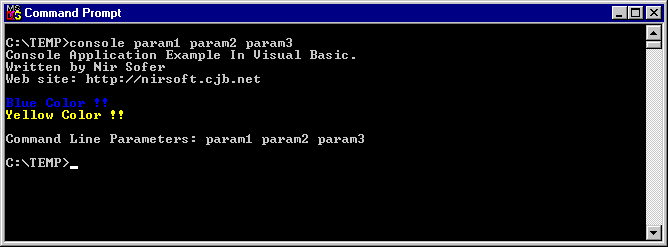
After you convert it to console mode, you'll get the following result:

Download the projects and executables
View the source code of Application Mode Changer(nirsoft.net)

Read More!